Changelog

Follow new updates and improvements to Synci.

Manual accounts: bank statements, loan payments, and investment tracking
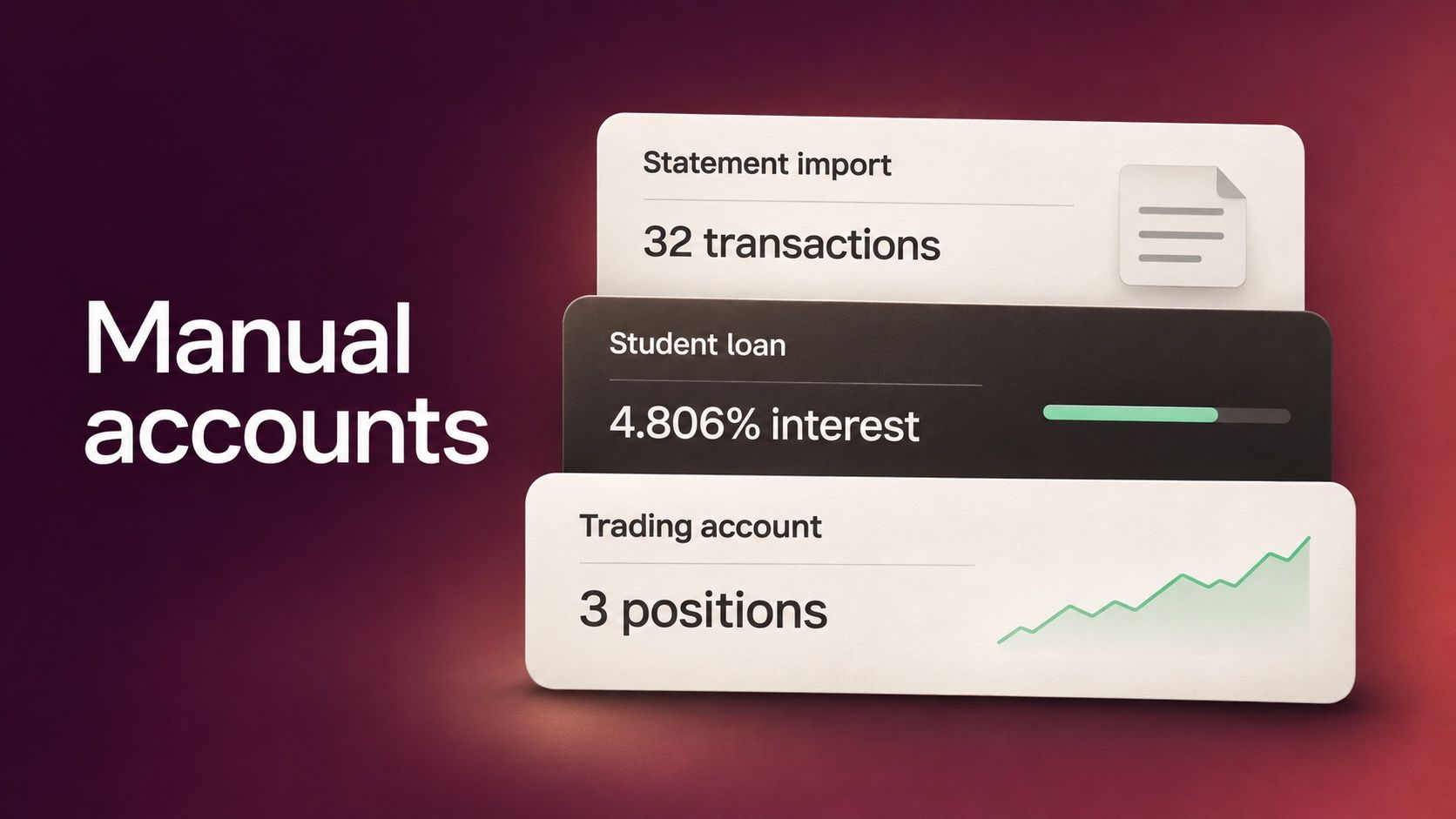
You can now track accounts in Synci even when your bank, lender, or broker doesn’t offer a connection. Open Manual Accounts in the sidebar to import a bank statement, track a loan as you pay it down, or add investments and let Synci keep their values up to date.

Import a bank statement

Under Bank accounts, choose Add a bank account and select Checking, Savings, or Card. You can import your first statement during setup or come back when you have a file. Synci reads CSV, OFX/QFX, and camt.053 statements.

For a CSV, Synci suggests which columns hold the date, description, and amount. Check the matches against a sample transaction, adjust them if needed, and save the mapping for your next statement. Before you confirm, the preview shows which transactions are new, which are already in the account, and which rows Synci couldn’t read.
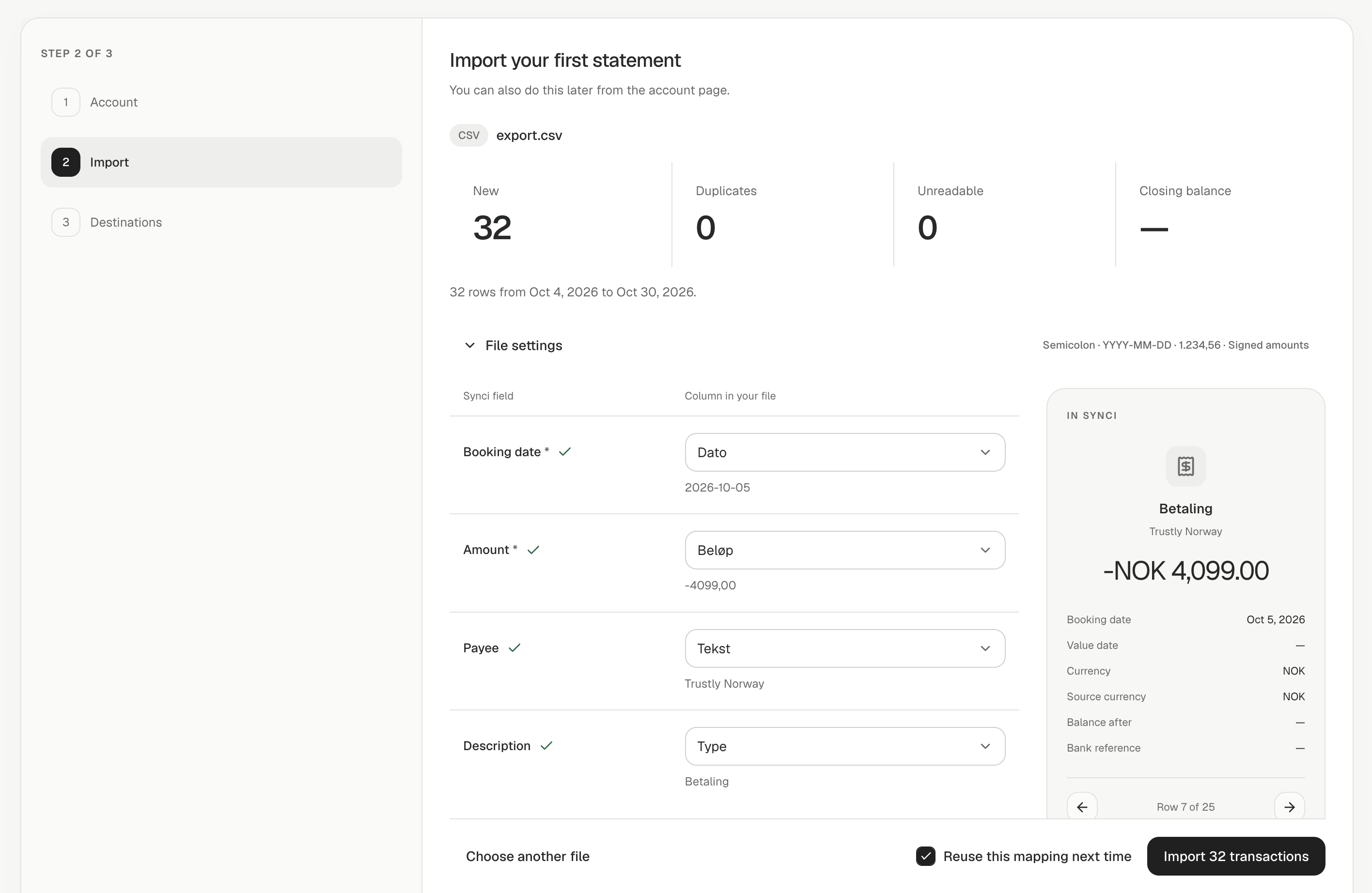
Imported transactions follow your usual rules and go to your linked destinations. If you imported the wrong statement, open the account’s Imports tab to undo that batch. Synci also removes those rows from destinations that support deletion.

Track loans and mortgages

Under Loans & liabilities, choose Add a loan and enter the remaining debt, interest rate, and fee per payment from your lender’s statement. Pick the bank account you pay from and confirm a few past payments. Synci uses those examples to build a rule: when the next matching payment comes through, it updates the loan and records the interest and fee separately. You can use a monthly schedule if you don’t have a connected paying account.

If your regular payment changes, Synci asks whether your rate changed too. You can check the balance against your lender’s statement at any time and record a dated adjustment if the two differ.
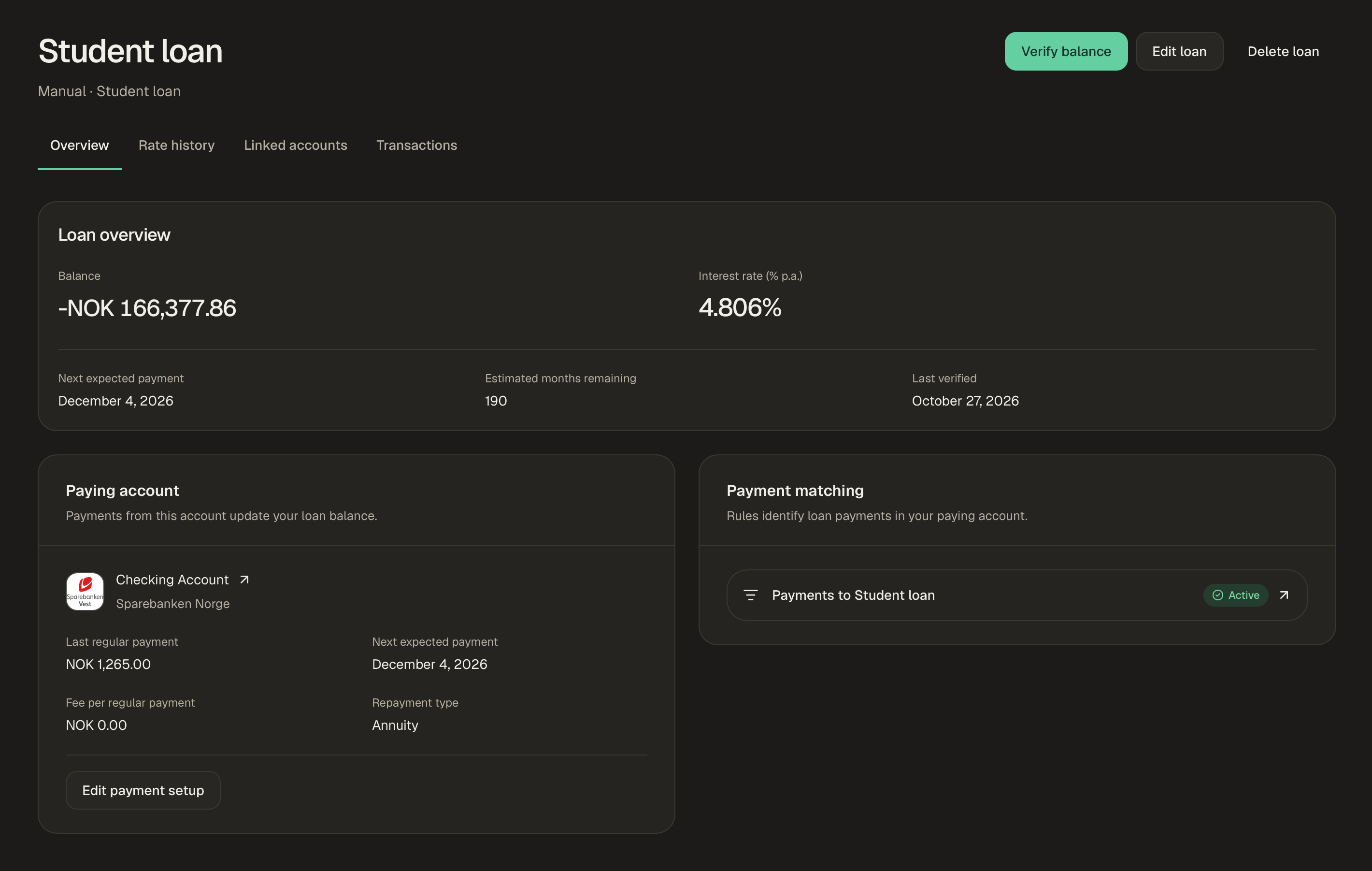
A linked loan appears as an Other Liability account in YNAB, where the bank payment arrives as a transfer, or as a loan account in Lunch Money. In Google Sheets and Notion, the optional Entry type column distinguishes payments, interest, and fees. Loan data is also available through SimpleFIN, the API, and the MCP server.

Track investments with daily closing prices

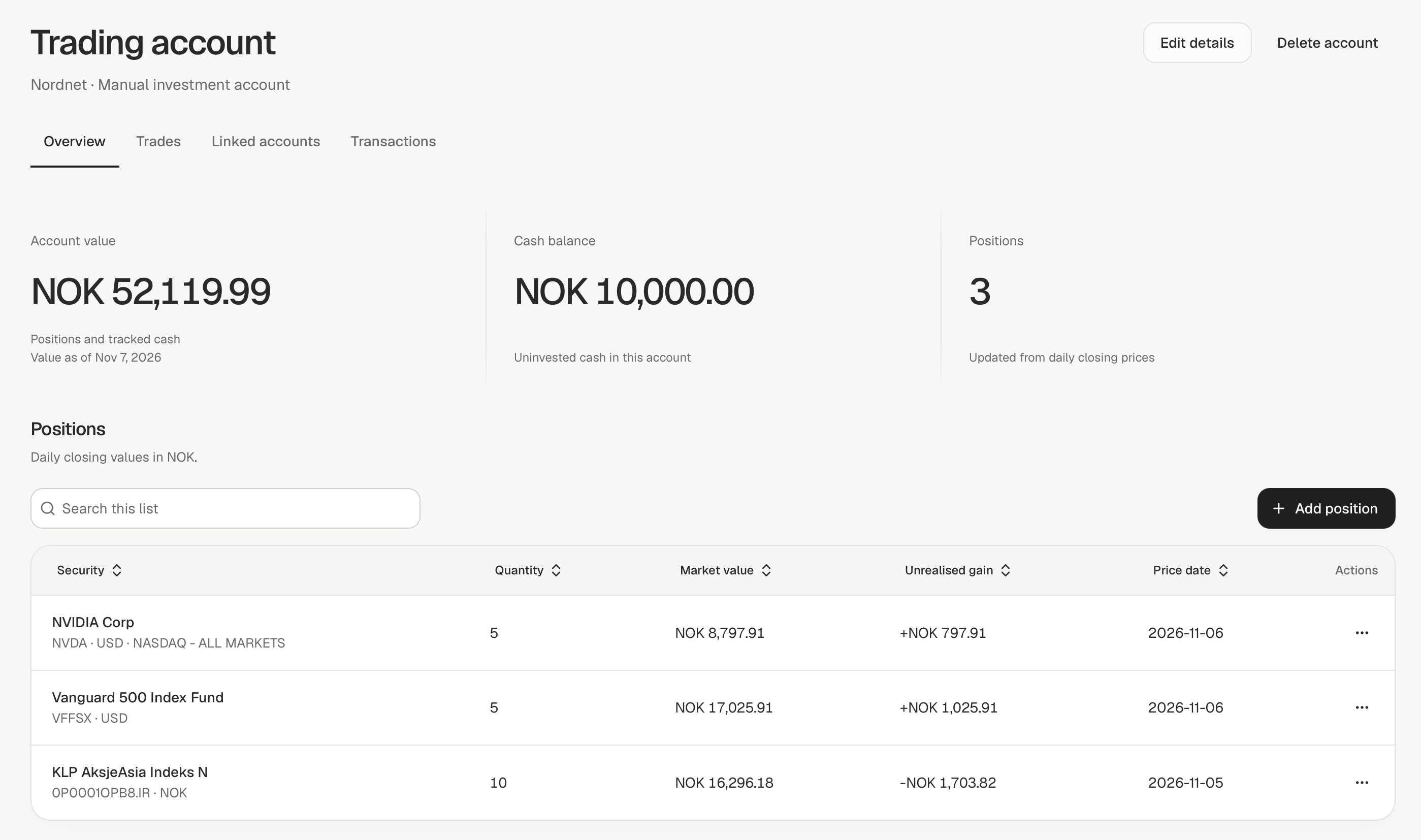
Under Investments, add an account, then search by name or ticker for a stock, ETF, or fund you hold. Choose the listing and enter how many units you own, including fractional units. If you also enter what you paid, Synci shows the unrealized gain or loss on that position.

You enter your holdings and record buys and sells when you trade. Synci handles the pricing. Each position shows its price date, so you can tell when it was last valued. You can also track uninvested cash; trades and matched transfers from your designated bank account update that balance.
Match transfers between your accounts

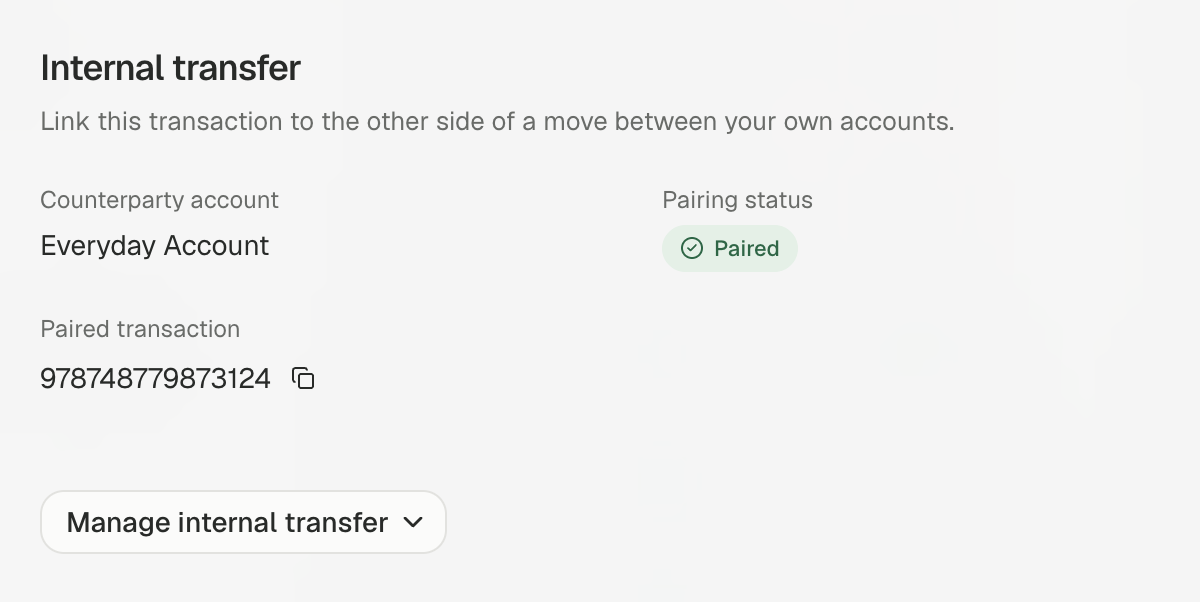
Set a transaction’s counterparty account by hand or with a rule. Synci looks in the other account for the opposite amount in the same currency within three days. If it hasn’t found a match after five days, the transaction appears in Needs review, where you can pair it yourself, including across currencies.

Select up to ten transactions and choose Mark as transfer to… to mark them together. You can also ask Synci to suggest a rule and see what it would have matched over the past twelve months. YNAB receives a paired transfer and creates the other side itself. While a match is pending, Synci holds it back from YNAB and Lunch Money. Google Sheets and Notion have an optional Counterparty account column.
Apply a rule to existing transactions

Open a rule and choose Apply to existing transactions to preview how many transactions would change. You can follow the run in the background and undo the whole run, including the paired side of a transfer. You can also see which rules ran on an individual transaction in its rule logs.

Create destination accounts while linking

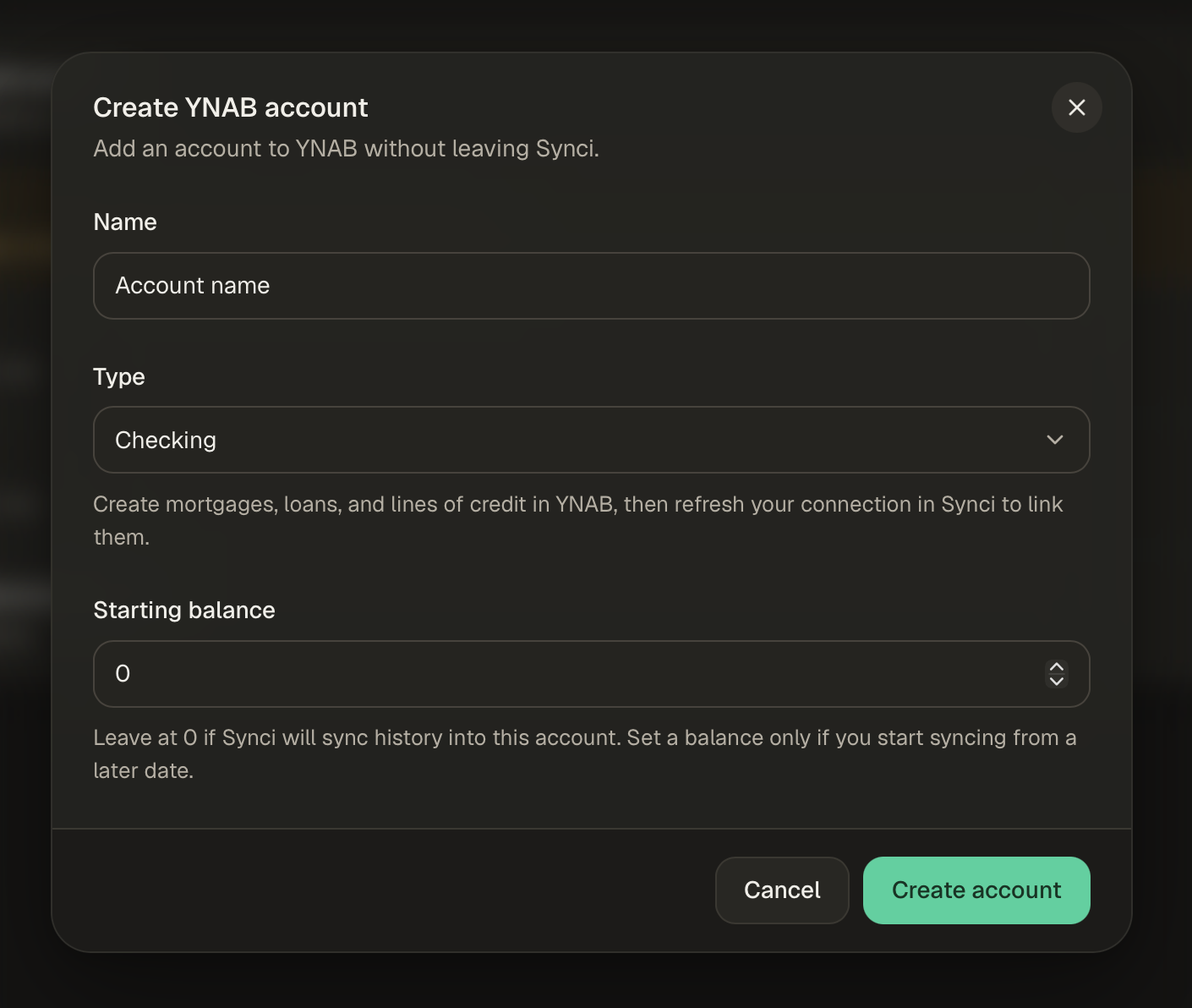
Choose New account when linking to YNAB or Lunch Money, or from the destination page. Pick the account type and starting balance, then link it without leaving Synci. The linking wizard can also create or attach a Google Sheets spreadsheet or Notion page.
For developers

The API now supports creating manual accounts, importing statements, and managing investment positions and trades. Imported transactions carry origin: IMPORT and an import_batch_id in API responses and webhooks. Transactions can also include counterparty, entry_type, and source_transaction_id. See the API docs for account types, rule suggestions, and applying rules to existing transactions.

Availability

Basic includes one manual account: a bank account or a loan. Pro and above can add multiple manual accounts and also have access to investment tracking.

New

A fresh look for Synci, and a new Raycast integration

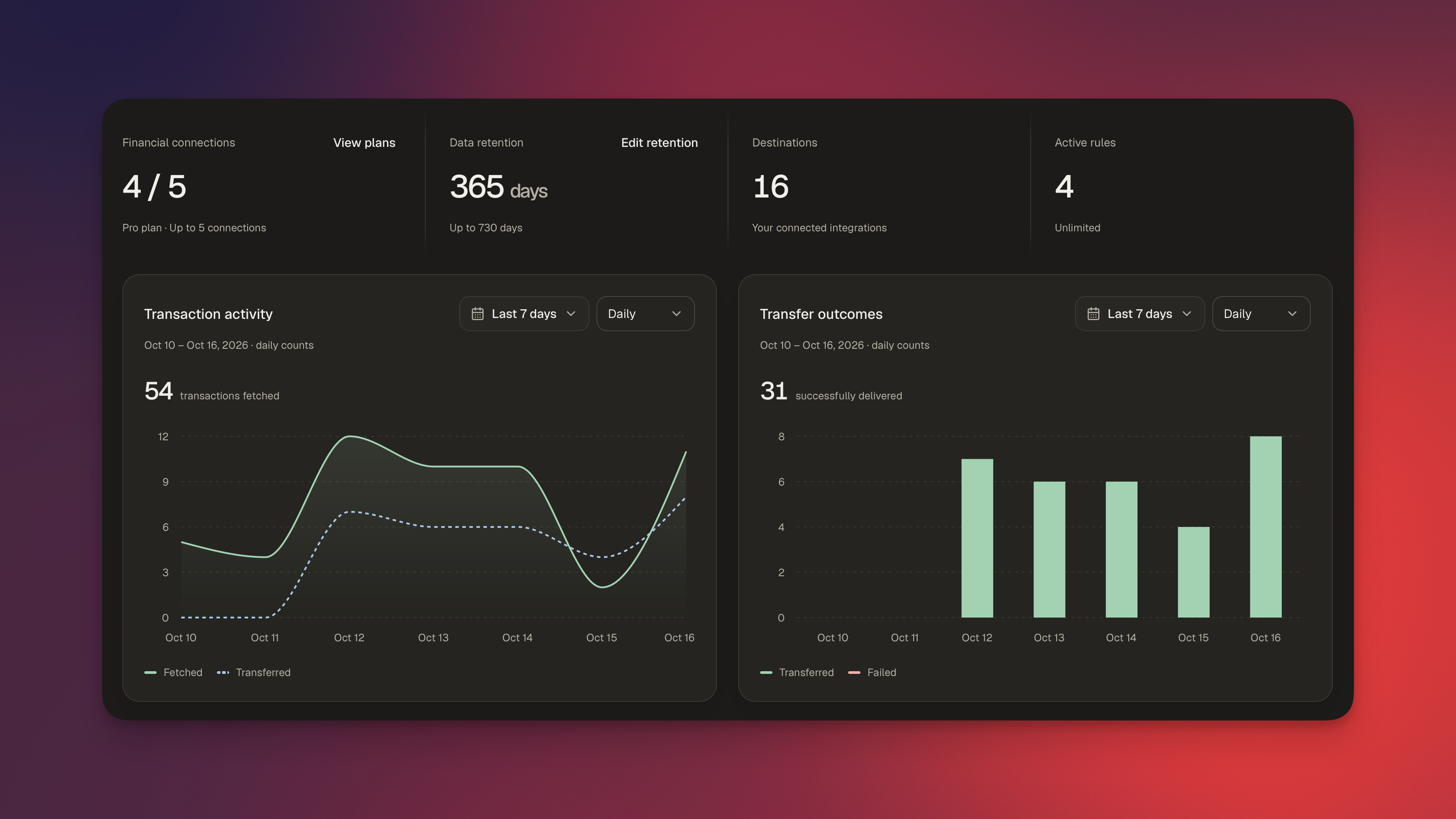
Synci has a new design! We’ve refreshed the app with cleaner layouts, smoother navigation, and a better experience on smaller screens. Alongside the redesign, we’ve improved connection setup and added a new way to explore your finances from Raycast.

A new look throughout the app

From your banks and linked accounts to transactions, rules, and developer tools, the new design makes things more consistent and easier to navigate. Connection health and sync status are easier to spot, and the updated transaction view brings transaction fields, transfer logs, and rule logs together when you need a closer look.

The new notification center keeps connection reminders and other updates close at hand. Open the bell in the top corner to see what needs attention, and choose which notifications you receive by email, in the app, or both.

We’ve also polished light and dark mode, mobile layouts, and the small interactions that make Synci nicer to use.

A smoother connection flow

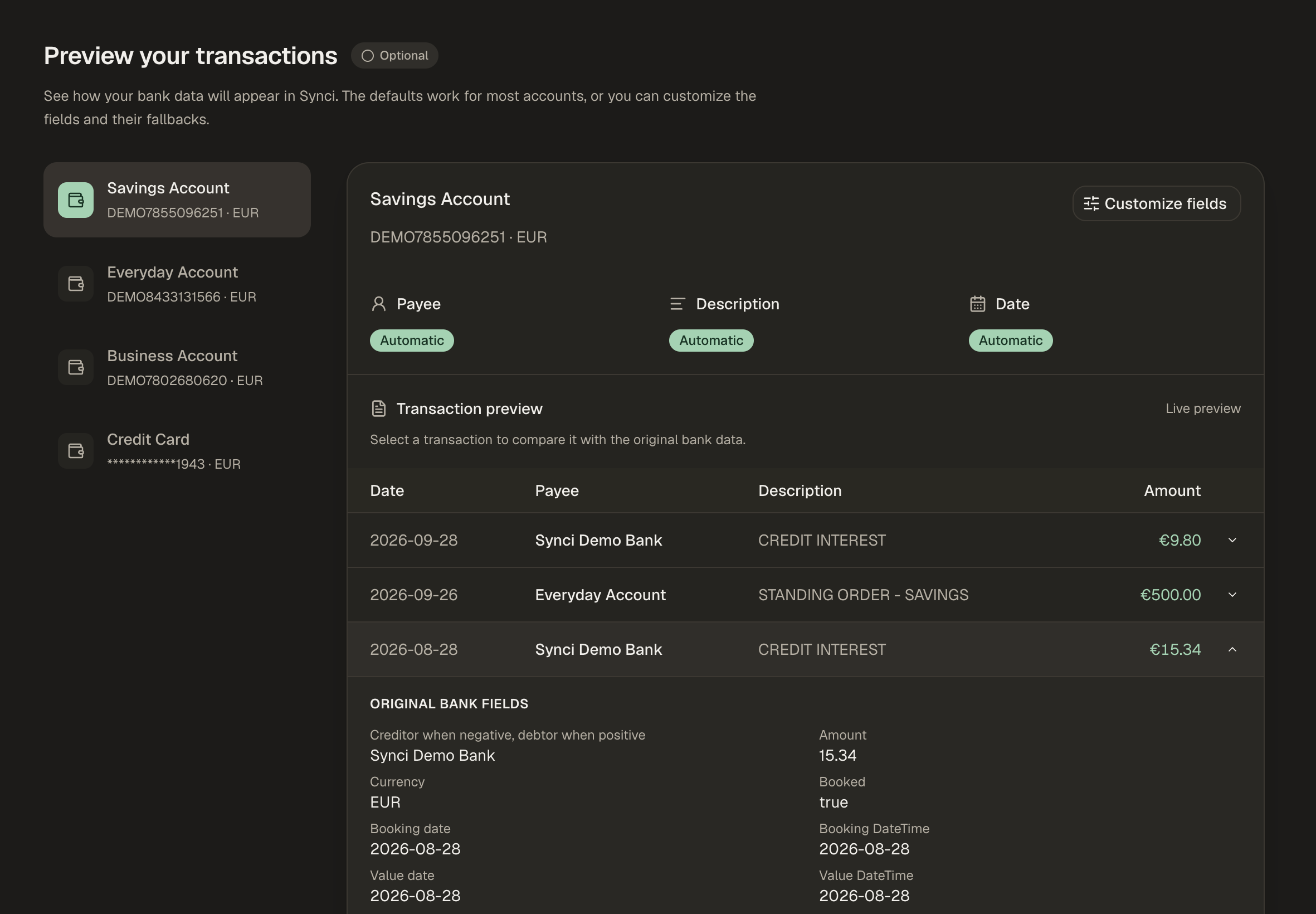
Connecting a bank now takes you through a clearer setup: choose the accounts you want to add to Synci, set your sync preferences, preview your transactions, and pick where you want to send them.

You can decide how far back to sync and check how your transactions will appear using actual data from your bank. Expand a transaction to compare it with the original bank fields, then adjust the payee, description, or date mapping if needed. The defaults still work for most accounts, but when your bank puts the useful information somewhere unexpected, it’s much easier to spot and fix.

You can move between steps to revisit your choices, with changes saved as you go.

Field mapping in the managed portal

Developers building managed apps can now let users configure field mapping directly in the Synci portal, without building a mapping interface themselves.

Enable Allow field mapping customization in your app’s settings, and users can review and adjust mappings during connection setup. They can also return later using the Mapping button beside an account in the portal.

The option is off by default. If you leave it disabled, setup stays simple: users just choose their accounts. After setup, they return to the portal’s connection list, where they can connect another institution.

Your finances in Raycast

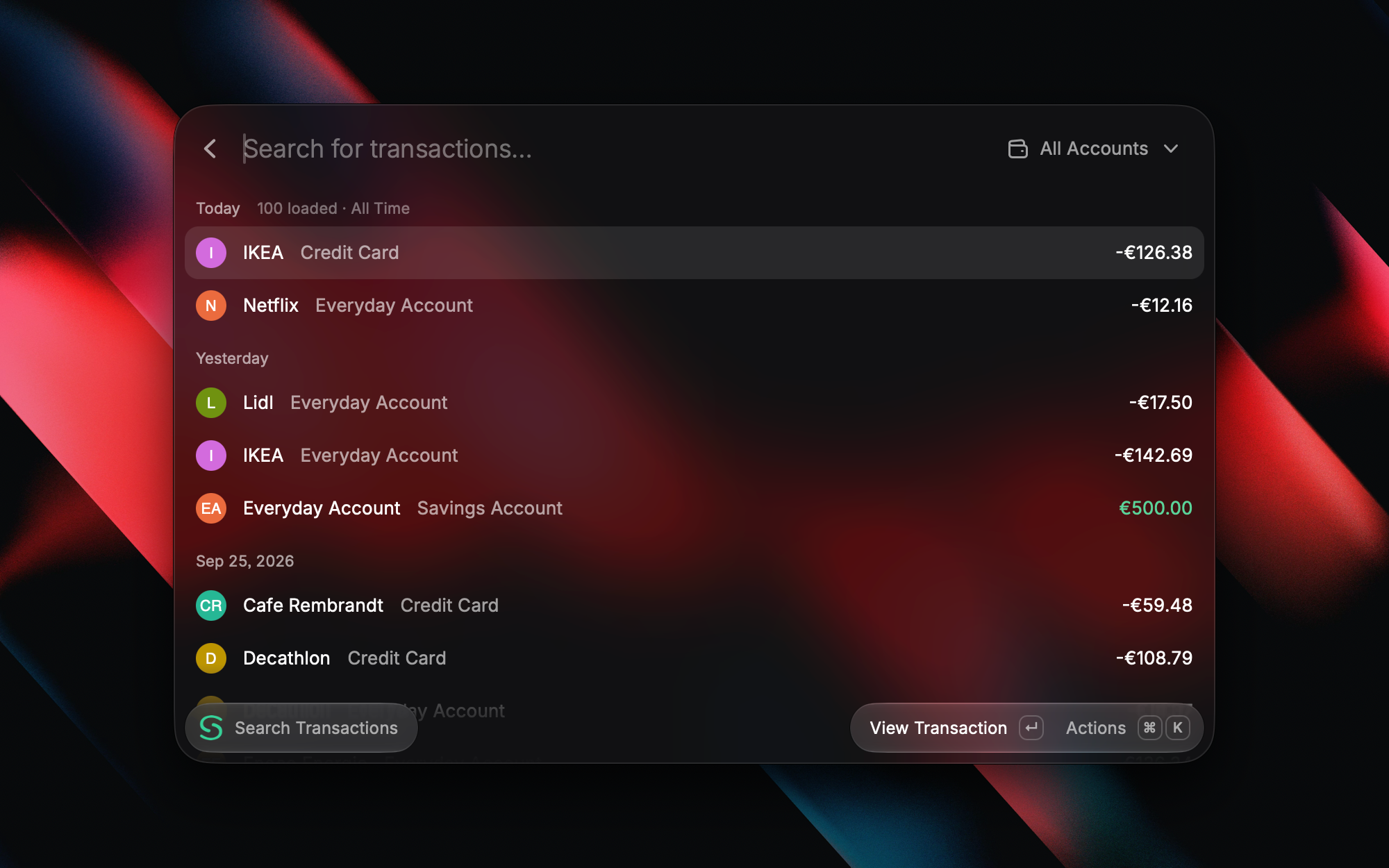
The new Synci extension for Raycast brings your bank, investment, and crypto accounts a few keystrokes away.

  • Find transactions by payee, description, or exact amount, with filters for account, date, status, and category.

  • Check balances and balance history, or browse your investment and crypto holdings.

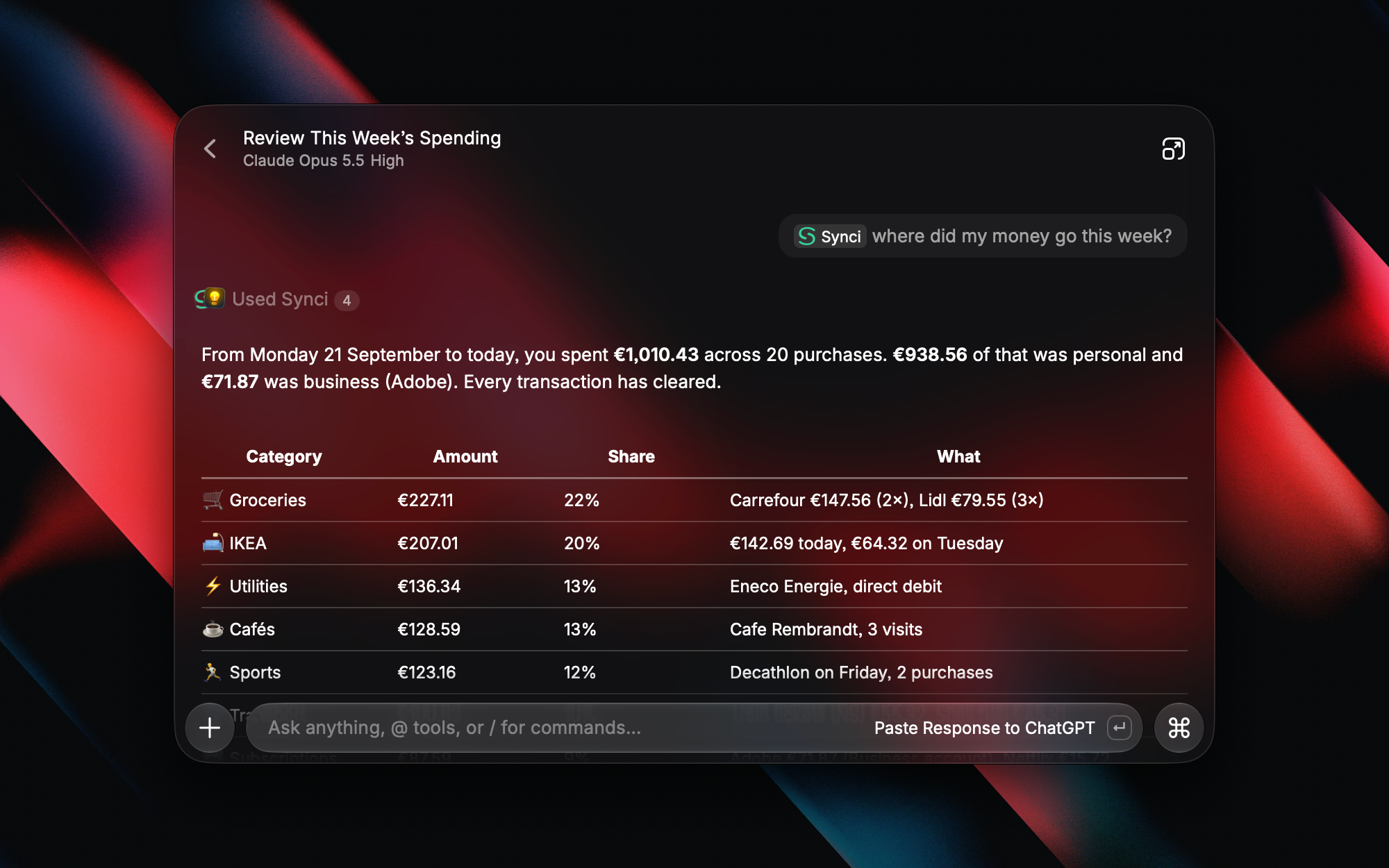
  • Explore recent spending with breakdowns by merchant or category.

  • Check connection status and quickly open Synci when something needs attention.

You can also export transaction search results as CSV or copy them into a spreadsheet. On macOS, an optional menu bar item keeps your selected account balances close at hand.

Ask about your money

With Raycast AI, you can ask questions like “How much did I spend at this merchant last month?” or “Which connections need attention?” Open Ask Synci, or mention @Synci in AI Chat.

AI features require Raycast Pro and an active Synci subscription. The regular commands work independently of Raycast AI.

The extension is available on macOS and Windows. Sign in with Synci, choose which accounts to share, and you’re ready to go. Access is read-only, and there are no API keys to configure.

Get Synci for Raycast →

NewImproved

Connect your bank to Actual Budget and SimpleFIN powered apps

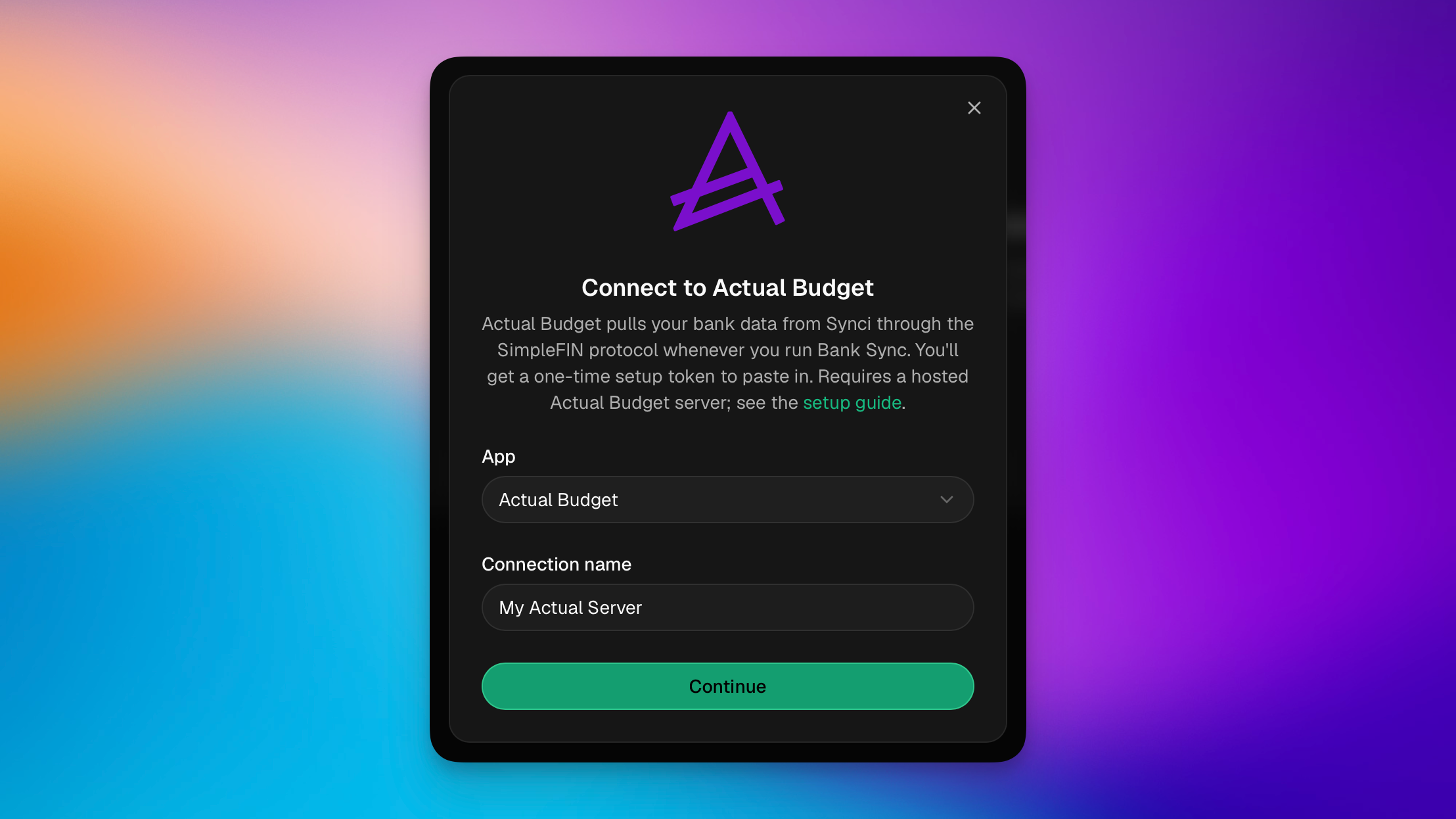
Synci is now a SimpleFIN data source. You can pull your bank, investment, and crypto accounts into Actual Budget or any other SimpleFIN-compatible app.

Until now, Synci pushed your data out to destinations like YNAB, Lunch Money, and Google Sheets. SimpleFIN flips that around: instead of Synci pushing, your budgeting app pulls from Synci whenever it runs its bank sync. That one change opens the door to a whole ecosystem of apps that already speak the SimpleFIN protocol, without us having to build a separate integration for each one.

  • Actual Budget gets a dedicated destination that we've tested end to end. See the Actual Budget setup guide.

  • Any other SimpleFIN app works through the generic SimpleFIN destination. Well-known examples include Buckets, Sparky Budget, ZapYeti, and EnvelopeBudget. If an app has a "connect a bank with SimpleFIN" option, it can read from Synci. See Apps powered by SimpleFIN.

Because Synci connects European banks (via GoCardless) and New Zealand banks (via Akahu), accounts from those regions now flow into these apps too, and investment/brokerage and crypto-exchange accounts come along, not just checking and savings.

How it works

  1. In Synci, go to Destinations then Actual Budget or SimpleFIN. Create a new connection.

  2. Choose which accounts to share: everything you have (now and in the future) or a specific selection.

  3. Copy the one-time setup token and paste it into your app's SimpleFIN screen.

  4. Run your app's bank sync. New transactions and updated balances import automatically, with no duplicates on re-sync.

The connection is read-only and scoped to exactly the accounts you pick. Synci never sees or changes your budget, your app does the fetching on your command, and you can revoke access at any time from the destination's page.

Good to know

  • One app, one destination. Each app connects with its own destination and its own single-use setup token. Connect as many apps as you like.

  • Shape your data with enrichment & rules. To clean up payees or descriptions, you can use Synci's built-in transaction enrichment and/or bank account rules. Their changes flow into every connected app automatically.

New

Earlier updates